THE PROBLEM
I think we all have faced that notification on our phones at some point: “Storage Full”. To solve this, you can either pay for extra cloud storage subscriptions or tediously swipe and tap through thousands of photos to manually delete them. With an average of 2,795 photos stored per person, organizing and cleaning up is a time-consuming process that most want to avoid.
This is where a new feature could help: making photo sorting quick and intuitive.
With a fast swipe method, users can manage large photo libraries and free up space — without endless subscriptions or manual cleanup.

ENTERING THE SORT MODE
via notification
You can get reminded by pop-up notifications that may also provide specific context like "Blurry photos detected" or "Screenshots from this weekend." Notifications can include helpful details such as potential storage savings—"132 photos, 3.1 GB can be freed"—or time estimates like "2-minute cleanup" to make the task feel manageable rather than overwhelming.
or via photos app
To enter the organize mode in the Apple photos App, you first select your photos as usual and tap the share icon.
In the familiar share sheet, a new option called “Quick Sort” appears as an icon; tapping it opens the sorting mode.

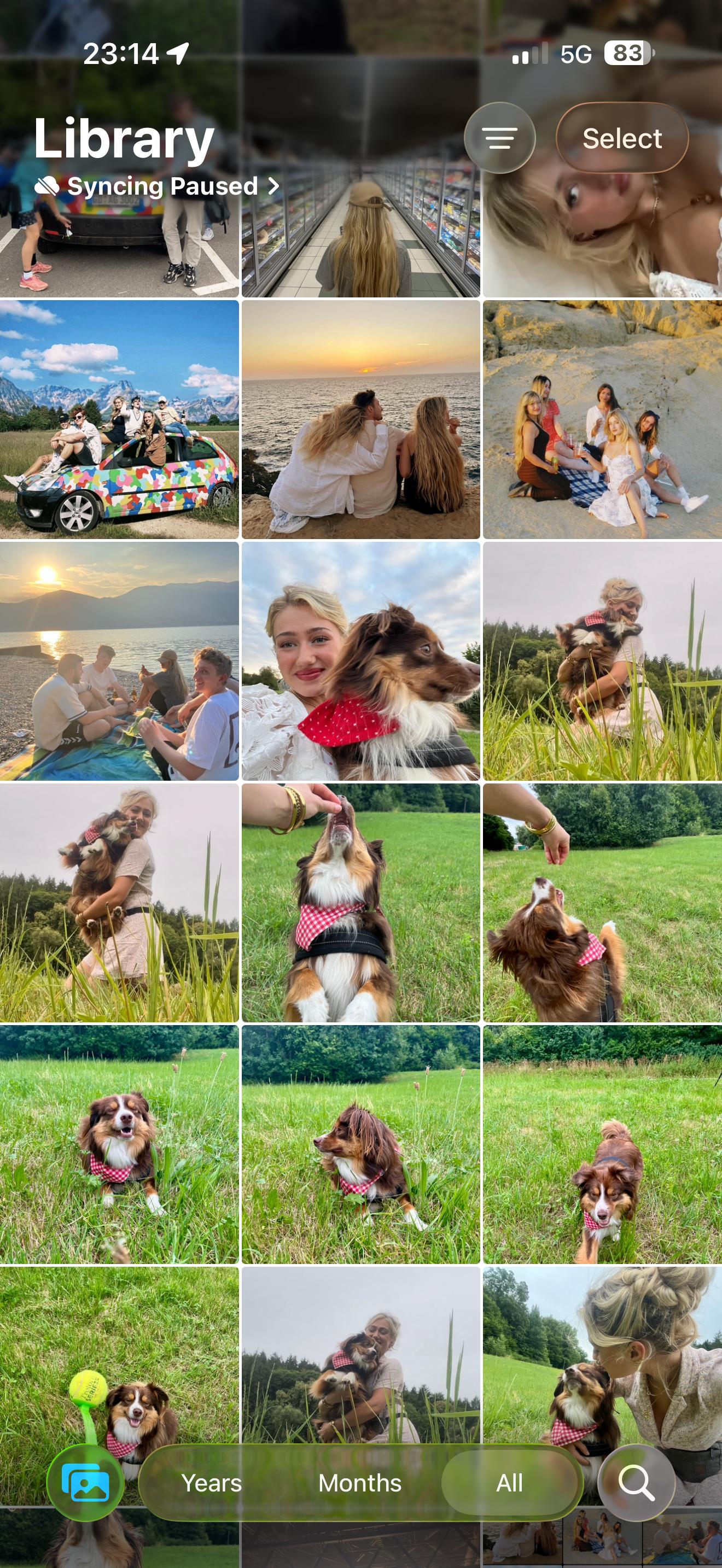
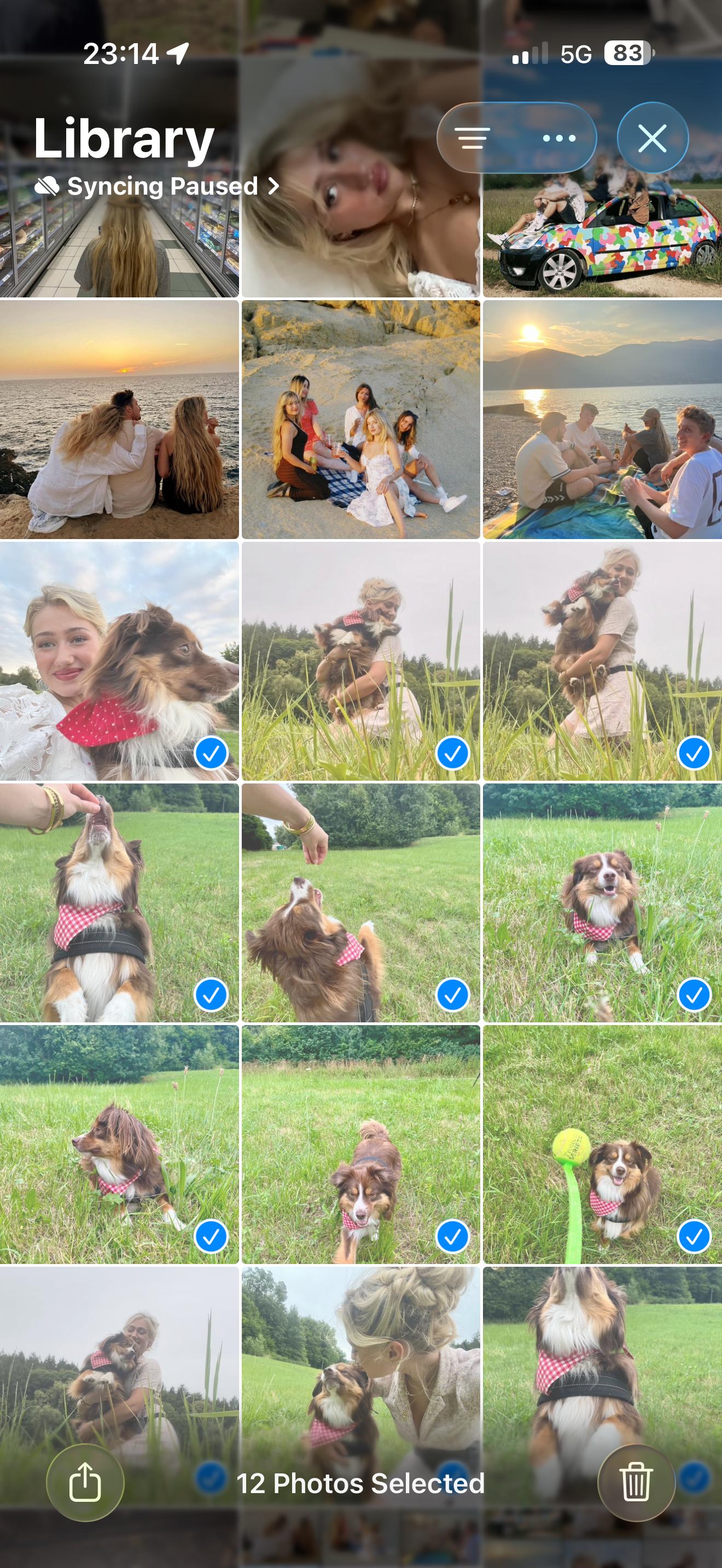
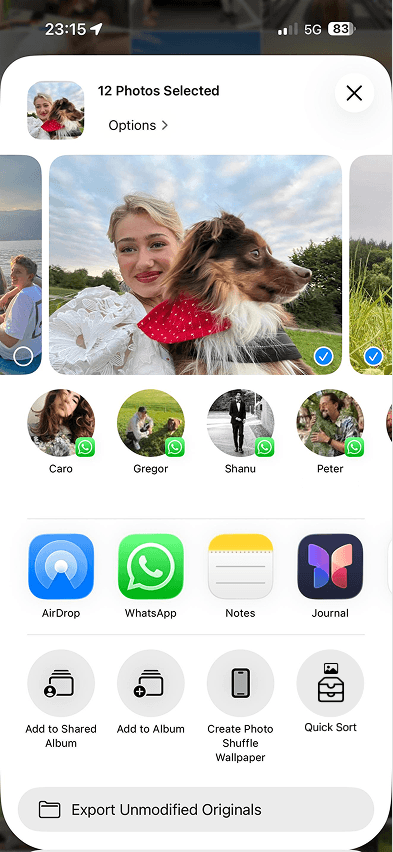
the dragging function
To file a photo into a folder, they long‑press on the image and drag it upwards into one of the destinations such as Favorites, Hidden, Albums, Shared Albums, or Trash.
As soon as a photo is sorted, the next one slides into view, enabling a fast, continuous sorting flow.
At the bottom, photos are displayed in a horizontal carousel, so users can quickly swipe left and right through their selection, just like in the standard Photos view.

The inspo - Pinterest
deleting a photo
To delete a photo, the user drags it into the Trash folder at the top. In the carousel, this photo now appears semi-transparent, signaling that it is “almost gone” but not yet final.
If the user changes their mind, they can tap the semi-transparent photo in the slider and an Undo button appears, bringing the image back to its normal state.


putting a photo in
an album
To place a photo into an album, the user simply drags it onto the Albums or Shared Albums folder in the top bar. All available albums then slide in from the right, and the user taps the desired album to file the photo there.
If this album picker was opened by accident, it can easily be closed again using the X button in the corner, returning directly to the sorting view.


EXITING THE SORT MODE
You can exit the sort mode by tapping the familiar X button in the top right corner.
When you do, a confirmation pop-up appears, asking whether you want to save all your changes before leaving the mode. This ensures that no edits are lost accidentally.
